
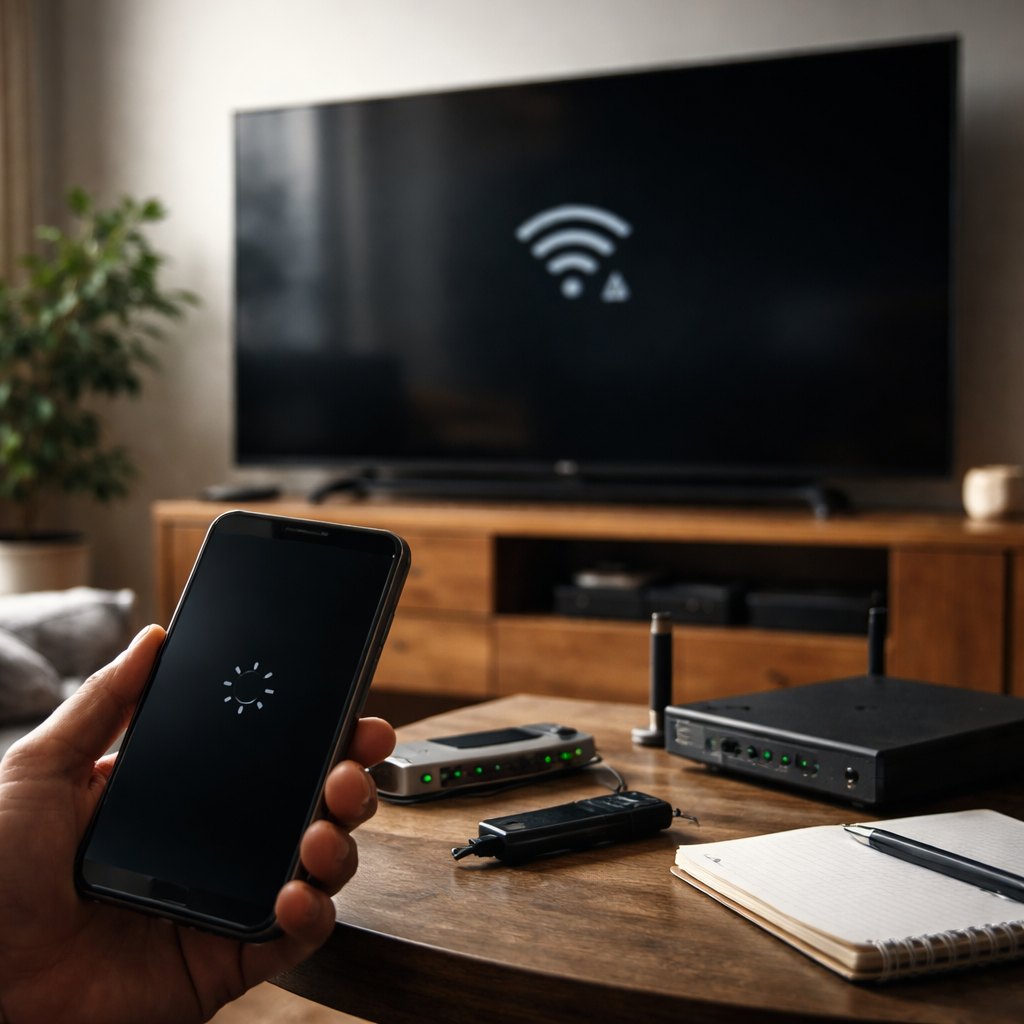
You’ve set everything up, the devices are on the same Wi-Fi, and still screen mirroring not working — no connection, a frozen frame, or just a blank screen staring back at you. Before you restart everything in frustration, it’s worth knowing that most mirroring failures come down to a handful of very specific causes, and nearly all of them are fixable without any technical background.
Why mirroring fails more often than people expect
Screen mirroring relies on a precise chain of conditions: compatible protocols, stable network performance, matching software versions, and hardware that actually supports the feature. Break any one link in that chain and the whole thing collapses. The tricky part is that your devices won’t always tell you which link broke — they’ll just quietly refuse to connect.
Wireless display technologies like Miracast, AirPlay, and Chromecast each work differently under the hood. Miracast creates a direct peer-to-peer Wi-Fi connection between devices, AirPlay requires both devices on the same local network, and Chromecast relies on your phone or laptop acting as a remote controller rather than a mirror in the traditional sense. Mixing up which protocol your TV or receiver actually supports is one of the most common reasons people can’t get a stable cast going.
The most common culprits behind a failed connection
Rather than working through a generic checklist, it helps to understand the actual reasons mirroring breaks down. Here’s what causes the majority of issues:
- Both devices are on different Wi-Fi bands — one on 2.4 GHz, the other on 5 GHz. Many routers broadcast both under the same name, so it’s not obvious.
- The receiving device (smart TV, streaming stick, or adapter) has a firmware version that’s incompatible with the casting source.
- VPN or firewall software on the phone or laptop is blocking the local network communication that mirroring depends on.
- The TV’s built-in Miracast or screen share feature is simply turned off in settings — often reset after a software update.
- Some Android devices limit mirroring when battery saver mode is active.
- On Windows, the wireless display driver may be missing or outdated, which prevents the device from being discovered at all.
A surprisingly large number of mirroring problems are solved just by making sure both devices are connected to exactly the same Wi-Fi network — not the same router, but the same band and SSID.
Platform-specific fixes that actually work
Generic advice like “restart your router” only goes so far. The real solutions depend on which ecosystem you’re working in.
Android to TV
Go to your phone’s display or connected devices settings and look for “Cast,” “Smart View,” or “Screen Mirror” — the label varies by manufacturer. If your TV doesn’t appear, force-stop the Google Home app if you have it, clear its cache, and try again. Also check that your TV’s casting input is set to the correct source.
iPhone or iPad to Apple TV / AirPlay receiver
AirPlay is generally reliable, but it breaks when devices are on different network subnets, which can happen with mesh Wi-Fi systems or guest networks. If AirPlay devices don’t show up in Control Center, toggle Airplane mode on and off on your iPhone — this resets network interfaces without losing your Wi-Fi password. Also verify that AirPlay access on your Apple TV isn’t restricted to “Current User” only.
Windows 10 / 11 to a Miracast-compatible display
Press Win + K to open the Cast panel. If nothing appears, open Device Manager and check under “Network Adapters” — if you see a yellow warning icon on your Wi-Fi adapter, update the driver. You can also run this command in PowerShell to verify Miracast support:
| What to check | How to check it |
|---|---|
| Miracast support on Windows | Run: netsh wlan show drivers — look for “Wireless Display Supported: Yes” |
| Wi-Fi band mismatch | Router admin panel → connected devices list |
| Firewall blocking | Temporarily disable third-party firewall, retry casting |
| TV firmware | TV Settings → Support → Software Update |
When the picture connects but looks wrong
Sometimes the cast connects but the wireless display quality is poor — laggy video, stuttering audio, or a resolution that looks noticeably worse than expected. This usually points to wireless interference rather than a compatibility issue. Cordless phones, microwave ovens, and neighboring Wi-Fi networks all compete on the 2.4 GHz band. Switching your router to a less congested Wi-Fi channel (use a free app like Wi-Fi Analyzer on Android to see which channels are crowded) often makes a visible difference in streaming quality.
If you’re casting from a laptop and the image is delayed, check whether your laptop is also downloading updates or syncing cloud files in the background. Screen mirroring is bandwidth-sensitive, and background processes quietly eat into the available connection.
A quick tip worth trying before anything else
Forget the Wi-Fi network on both devices and reconnect from scratch. This clears cached network configuration that can silently cause connection handshake failures — something a simple restart doesn’t always fix.
Hardware limitations that no setting can override
Not every device supports every mirroring method, and this is where people sometimes spend hours troubleshooting something that was never going to work. A few things worth knowing:
- Older smart TVs marketed as “Wi-Fi capable” may not support Miracast or AirPlay natively — they may only support DLNA, which streams media files but doesn’t mirror your screen.
- DRM-protected content (Netflix, Disney+, some YouTube streams) cannot be mirrored from many Android devices due to Widevine restrictions. The screen will go black on the TV even when the connection is active.
- Some budget Android phones disable Miracast at the hardware level to reduce cost, even if the OS settings show a “Cast” option — it simply won’t find compatible devices.
If you run into a hard hardware wall, an HDMI cable remains the most reliable fallback — and with USB-C to HDMI adapters now widely available, it works with most modern phones and laptops without needing any additional software.
Getting things working and keeping them that way
Once your screen mirroring is stable, a few habits will prevent most future issues. Keep your TV firmware updated — manufacturers regularly patch wireless connectivity bugs. On your phone or laptop, avoid letting the OS auto-connect to a weaker signal when a stronger one is available nearby, since mid-session network switching will drop the cast immediately. And if you’re setting up a space where you’ll mirror frequently, consider assigning static local IP addresses to your casting devices through your router — it removes one more variable that can cause discovery failures.
Screen mirroring isn’t complicated technology, but it sits at the intersection of several systems that don’t always talk to each other cleanly. Understanding which piece is actually failing — network, protocol, driver, or hardware — turns what feels like a random malfunction into a straightforward problem with a clear solution.