
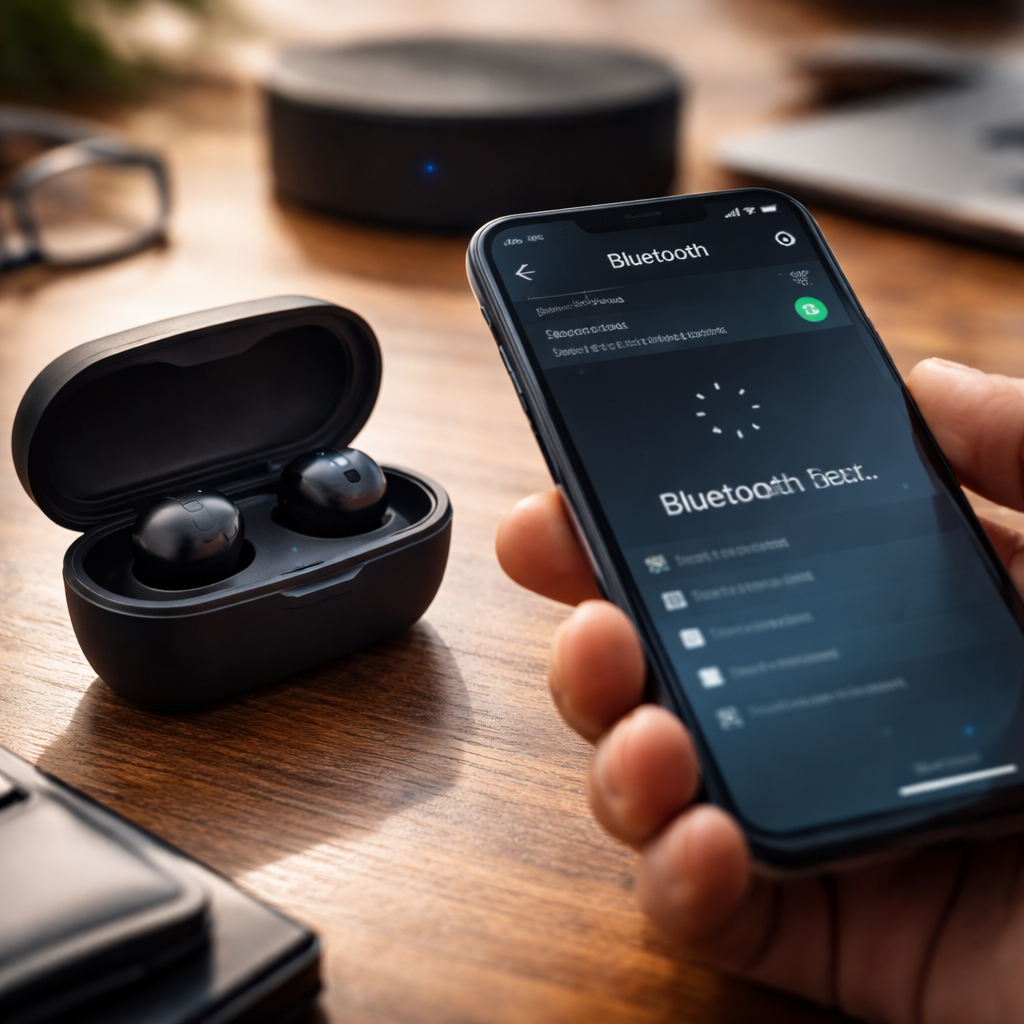
Most Bluetooth connection problems have nothing to do with broken hardware — and knowing how to fix a Bluetooth pairing issue correctly can save you from unnecessary frustration, factory resets, or trips to a repair shop. The good news is that the majority of pairing failures follow predictable patterns, and once you understand what’s actually happening under the hood, the solutions become surprisingly straightforward.
Why Bluetooth Pairing Fails in the First Place
Bluetooth operates on the 2.4 GHz frequency band — the same one used by Wi-Fi routers, microwave ovens, and even baby monitors. This overlap alone causes more pairing issues than most people realize. But interference is just one piece of the puzzle.
Pairing failures typically fall into a few distinct categories: corrupted pairing data stored on the device, software conflicts between the operating system and Bluetooth stack, physical distance or obstructions, and firmware bugs that affect the device’s ability to broadcast or recognize signals properly. Understanding which category your issue belongs to is the fastest way to the right fix.
The Logical Order of Troubleshooting
Rather than jumping randomly between solutions, working through steps in a logical order saves time and prevents you from missing the actual cause. Here’s a reliable sequence that works across most device types and operating systems:
- Turn Bluetooth off on both devices, wait 10 seconds, then turn it back on
- Move both devices within 1 meter of each other — interference weakens significantly with distance
- Remove (forget) the device from your saved Bluetooth list, then attempt a fresh pairing
- Restart both devices completely, not just the Bluetooth toggle
- Check whether the device you’re trying to pair is already connected to another phone or computer
- Make sure the device is in active pairing mode — many headphones and speakers exit pairing mode after 30–60 seconds
That last point catches people off guard more often than you’d expect. A device that appears to be searching may actually have timed out and returned to a standby state, especially true-wireless earbuds that auto-connect to previously paired devices.
Platform-Specific Fixes That Actually Work
The steps above apply broadly, but some platforms have quirks worth knowing about.
| Platform | Common Issue | Recommended Fix |
|---|---|---|
| Android | Cached Bluetooth data causing pairing loop | Clear cache for Bluetooth app in Settings → Apps → Bluetooth |
| iOS / iPadOS | Device not appearing in available list | Toggle Airplane Mode on and off, then retry pairing |
| Windows | Driver conflict after OS update | Uninstall Bluetooth driver in Device Manager, let Windows reinstall it |
| macOS | Bluetooth module not responding | Hold Shift + Option and click the Bluetooth icon to reset the module |
Windows users often overlook the driver angle entirely. After major updates, the Bluetooth driver can become mismatched with the new system files, causing devices to show as “paired” but fail to actually connect or transfer audio. A fresh driver installation resolves this in most cases.
When a Simple Reset Isn’t Enough
Some issues run deeper than a quick toggle can fix. If you’ve worked through the basics and the problem persists, the next layer involves the device’s internal memory.
Many Bluetooth accessories — headphones, speakers, keyboards — store a list of previously paired devices internally. When this list fills up or becomes corrupted, the device may behave erratically: connecting briefly then dropping, refusing to enter pairing mode, or simply not appearing to other devices at all.
Performing a factory reset on the Bluetooth accessory clears its internal pairing memory completely. This is different from resetting your phone — you’re resetting the peripheral itself.
The method varies by manufacturer. For most headphones, it involves holding the power button or a combination of buttons for 5–10 seconds until an LED flashes a specific color pattern. Check the device manual or the manufacturer’s support page for the exact steps — there’s no universal method here.
Hidden Culprits Most Guides Don’t Mention
A few less obvious factors can silently sabotage your Bluetooth connection without triggering any error messages.
- Low battery on the peripheral — many devices reduce their Bluetooth broadcast power when the battery drops below 20%, making them harder to detect
- USB 3.0 ports on computers emit electromagnetic interference that directly disrupts 2.4 GHz signals — if your Bluetooth adapter is physically close to a USB 3.0 device, try moving it
- Outdated firmware on the accessory — manufacturers release firmware updates that fix known pairing bugs, and skipping these updates leaves you vulnerable to documented issues
- Multiple active Bluetooth devices competing for the same profile (for example, two sets of headphones both trying to claim the audio output)
The USB 3.0 interference point is backed by research from Intel and is particularly relevant for desktop users with Bluetooth dongles. Simply plugging the dongle into a USB 2.0 port or using a short extension cable to move it away from USB 3.0 devices can make a measurable difference in connection stability.
A Practical Checklist Before You Give Up
Before concluding that the hardware is defective, run through this quick reference list. It covers the most statistically common causes of persistent pairing failure:
- Confirmed the device is in active pairing mode, not just powered on
- Removed the device from the paired list on all previously connected phones or computers
- Tested the device with a different phone or computer to isolate whether the issue is with the device or the host
- Checked for firmware updates for both the accessory and the host device
- Ensured no other device is actively connected to the accessory
- Charged the peripheral to at least 50% battery before retrying
Testing with a different host device is genuinely one of the most useful diagnostic steps and one that people skip because it feels inconvenient. If your headphones pair instantly with someone else’s phone, the problem is clearly on your phone’s side. That single data point narrows the solution space dramatically.
When You’ve Tried Everything and It Still Won’t Connect
If the device fails to pair with multiple different hosts even after a factory reset, that’s a strong signal of a hardware fault — typically a failed Bluetooth chip or antenna damage. This is more common in devices that have been exposed to moisture, dropped, or are simply older models where components have degraded.
At that point, the practical path forward depends on warranty status. If the device is under manufacturer warranty, a documented pairing failure with multiple hosts is generally accepted as grounds for a replacement. If it’s out of warranty, weigh the repair cost against the price of a new unit — for most consumer Bluetooth accessories, repair isn’t economically justified unless the device has significant personal or monetary value.
Bluetooth technology has become reliable enough that genuine hardware failures are the exception, not the rule. In the vast majority of cases, the fixes described above will get your devices talking to each other again — without needing any special tools, technical background, or professional help.