
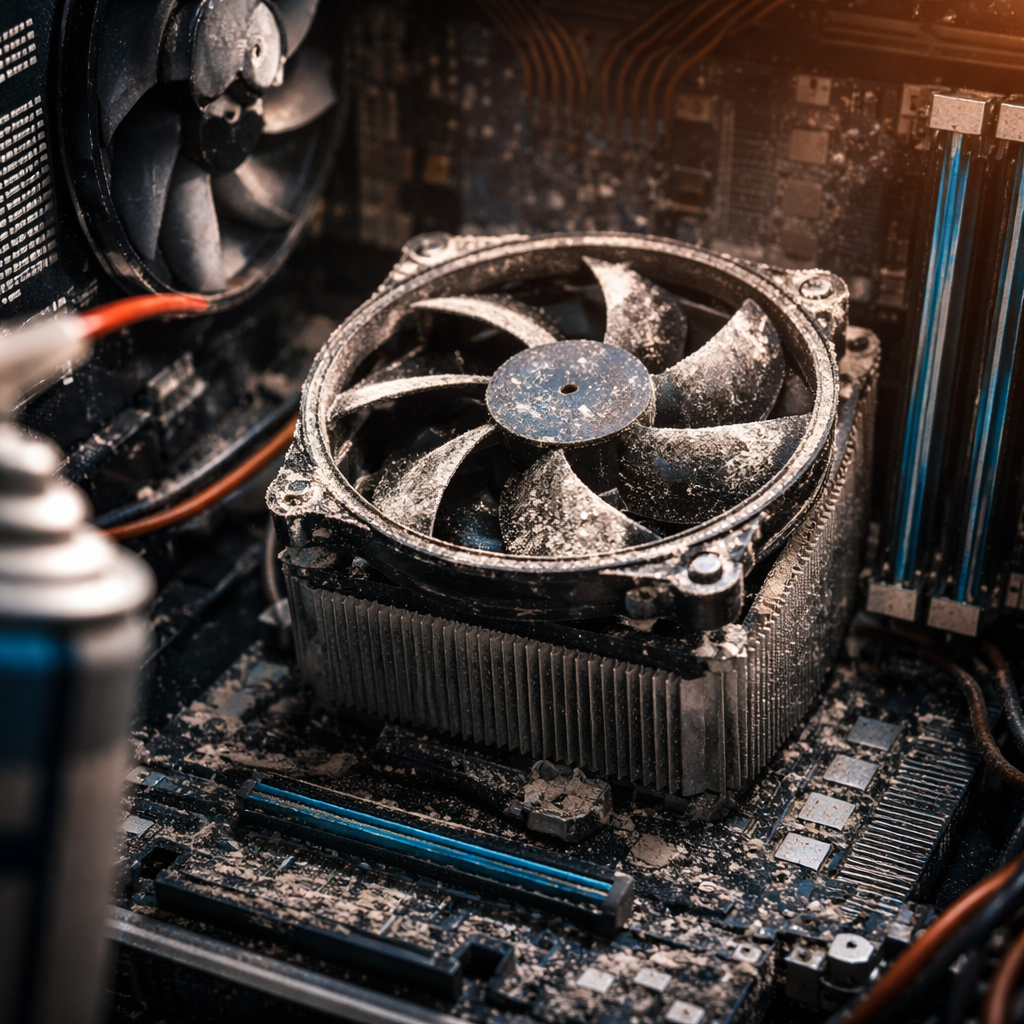
A spinning fan is something most people never think about — until it stops. When a computer fan not working becomes your reality, the consequences can range from annoying thermal throttling to a fully overheated system that shuts down mid-task or, worse, suffers permanent hardware damage. The good news is that most fan failures have identifiable causes and practical fixes, and you don’t need to be an engineer to handle them.
Why fans matter more than most people realize
Cooling components are the unsung heroes of any computer. Your CPU, GPU, and power supply generate significant heat under load, and without proper airflow, temperatures climb fast. Modern chips have built-in thermal protection and will throttle performance or shut down entirely before they burn out — but repeated heat stress degrades hardware over time, shortening its lifespan noticeably.
Before diving into specific solutions, it helps to understand which fan has actually stopped. Desktop computers typically have several: a CPU cooler fan, case fans for general airflow, a GPU fan, and a power supply fan. Laptops usually have one or two fans shared between the CPU and GPU. Pinpointing which one has failed narrows your troubleshooting significantly.
The most common reasons a PC fan stops spinning
Fan failures rarely happen without a reason. Here are the most frequent culprits worth checking first:
- Dust buildup blocking the fan blades or clogging the heatsink fins
- A worn-out or dry bearing inside the fan motor
- A loose or disconnected power connector on the motherboard header
- Incorrect fan speed settings in BIOS/UEFI — sometimes the fan is configured to only spin when temperatures exceed a threshold
- A faulty fan controller or dead motherboard fan header
- Physical damage to the fan blades or cable caught in the rotor
- Driver or software issues affecting PWM (pulse-width modulation) fan control
It’s worth starting with the simplest explanations. A fan that appears dead might actually be working exactly as programmed — spinning only when needed. Many modern systems use smart fan curves that keep fans off at idle for a quieter experience.
If your computer is running warm but the fan isn’t spinning at all, that’s a red flag. Under load, fans should always kick in — silence in that scenario isn’t a feature, it’s a warning.
Step-by-step: how to diagnose the problem
Systematic checking saves time and prevents unnecessary part replacements. Work through this sequence before concluding the fan is broken beyond use.
Check BIOS fan settings first
Restart your computer and enter BIOS/UEFI (usually by pressing Del, F2, or F10 during boot — check your motherboard manual). Navigate to the hardware monitor or fan control section. You’ll see current RPM readings for each fan header. If a fan shows 0 RPM, the system isn’t detecting it at all. If it shows a value but the fan isn’t visibly spinning, the sensor may be misreading.
Also check the fan curve or fan mode settings. If it’s set to “Silent” or has a high temperature threshold before activation, the fan may simply not be reaching that trigger point during normal use.
Inspect the physical connections
Power down completely and unplug the machine. Open the case (or for laptops, remove the back panel carefully). Check that the fan’s connector is fully seated on the correct header — CPU fans go to CPU_FAN, case fans to SYS_FAN or CHA_FAN. A slightly loose connector is enough to cause a no-spin situation.
While you’re in there, look for any cable that might have fallen into the fan’s path. Even a thin wire touching the blades will stop them immediately.
Clean out accumulated dust
Dust is the most underestimated threat to computer cooling. Use compressed air to blast out debris from the fan blades, heatsink fins, and vents. Hold the fan blades still while spraying — letting them spin freely from air pressure can generate back-current that may damage the motor over time.
Test with fan control software
Tools like SpeedFan, HWiNFO, or your motherboard’s proprietary utility (ASUS AI Suite, MSI Command Center, etc.) let you manually set fan speeds. If you can force the fan to 100% and it spins, the hardware is fine and you have a configuration problem. If it doesn’t respond, the fan or header may be dead.
| Symptom | Likely cause | First action |
|---|---|---|
| Fan 0 RPM in BIOS, no spin | Disconnected cable or dead fan | Reseat connector, swap to different header |
| Fan shows RPM but doesn’t spin | Sensor fault or software bug | Update BIOS, reinstall monitoring software |
| Fan spins intermittently | Worn bearing or failing motor | Listen for grinding noise, replace fan |
| Fan spins slowly, temps high | Dust blockage or incorrect fan curve | Clean thoroughly, adjust BIOS fan profile |
| Loud rattling from fan | Cable obstruction or damaged blade | Inspect visually, clear obstruction |
When to replace the fan — and what to look for
If cleaning, reconnecting, and software adjustments don’t resolve the issue, replacement is the practical next step. Fans are relatively inexpensive components, and holding onto a failing one risks everything connected to it.
When choosing a replacement, pay attention to these factors:
- Size — measure your existing fan (common sizes: 80mm, 92mm, 120mm, 140mm for case fans; CPU cooler fans vary by cooler model)
- Connector type — 3-pin fans offer voltage control, 4-pin PWM fans allow more precise speed management
- Static pressure vs. airflow rating — static pressure fans work better against heatsinks and radiators; high-airflow fans suit open case positions
- Noise level — measured in dBA; lower is quieter, important if your setup is in a shared or quiet space
- Bearing type — ball bearing fans last longer but are louder; fluid dynamic bearing (FDB) fans are quieter with good longevity
Don’t match by appearance alone. A fan that looks identical to the original but has different airflow characteristics can actually make thermal performance worse, not better.
Laptop fans: a slightly different situation
Laptop cooling systems are more compact and less forgiving. A blocked or failed laptop fan leads to thermal throttling much faster than in a desktop, and the heat has fewer places to go. If your laptop fan isn’t spinning, the first step is the same — check temperatures with a tool like HWMonitor and see if the system is running hot under load.
Laptop fans accumulate dust in the heatsink pipes and exhaust vents. In many models, you can access the fan by removing the bottom panel and using compressed air on the exhaust vent from the outside — this pushes debris back through and out. Full disassembly to clean the heatsink directly is more effective but requires confidence with small screws and delicate ribbon cables.
If the fan itself needs replacement, compatibility is critical. Laptop fans are model-specific, so search by your exact laptop model number rather than just dimensions. OEM parts are preferable; budget third-party replacements sometimes have shorter lifespans or incompatible connectors.
Keeping your fans running well long-term
Prevention is genuinely easier than dealing with an overheated system. A few consistent habits go a long way:
- Clean your system with compressed air every few months — more often if you have pets or a dusty environment
- Keep your computer off the floor where possible, since floor placement dramatically increases dust intake
- Use dust filters on case fan intakes and clean them regularly
- Monitor temperatures with free tools periodically — catching a slowly degrading fan before it fails completely saves stress
- Don’t block laptop vents by using it on soft surfaces like beds or sofas
- Check fan RPMs occasionally in BIOS or monitoring software so you notice any gradual decline
Fans have a finite lifespan measured in hours of operation. Quality fans from reputable brands typically last many years under normal use, but even good ones eventually wear out. Treating them well extends that window considerably.
When the fix is simpler than you thought
Most fan problems turn out to have straightforward solutions — a disconnected cable, a misconfigured BIOS setting, or a clump of dust in exactly the wrong place. Working through the problem methodically rather than immediately assuming hardware death saves money and teaches you something useful about how your machine actually operates.
If after all troubleshooting the fan genuinely won’t spin, replacing it is a small investment compared to the cost of a damaged CPU or GPU. A working cooling system is what keeps everything else running — and once you’ve fixed it yourself, you’ll know exactly what to watch for next time.