
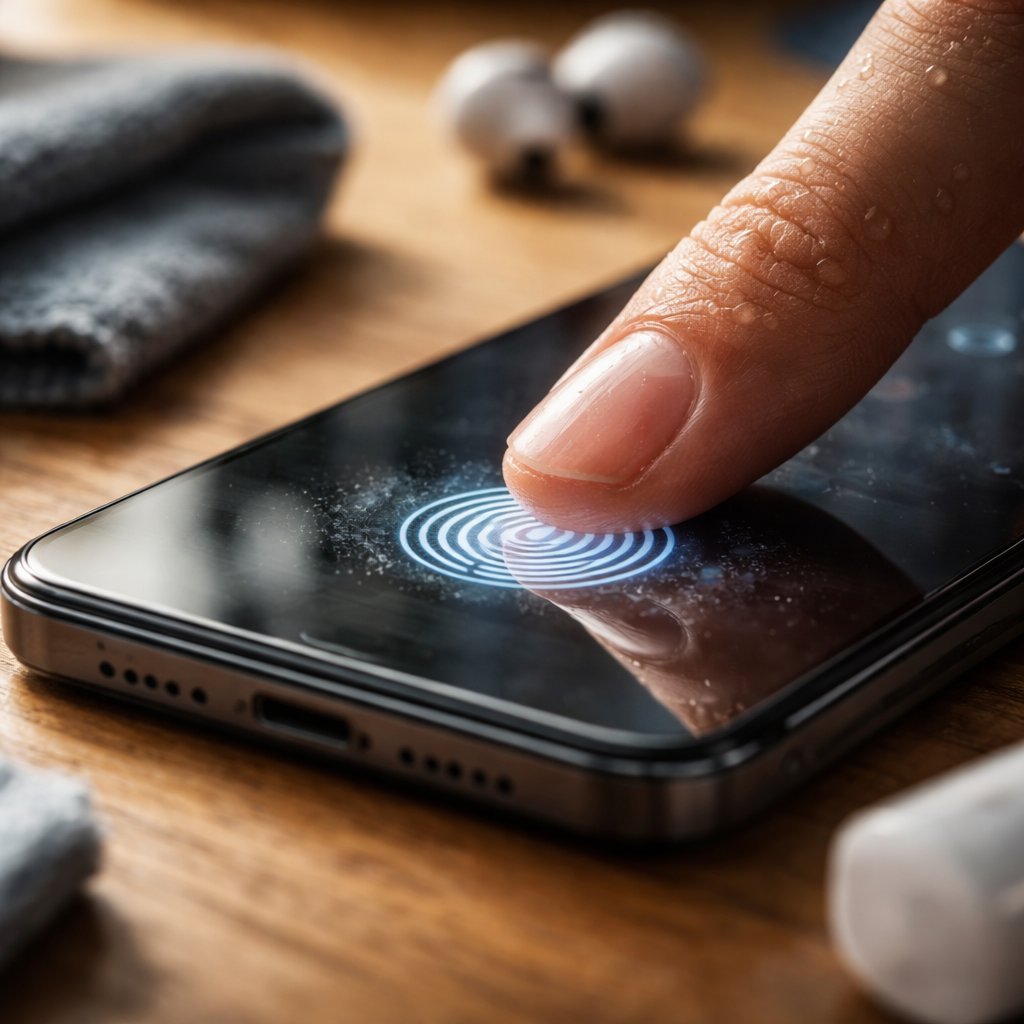
You press your finger to the sensor, wait a second, and nothing happens. Sound familiar? A fingerprint scanner not working is one of those frustrating moments that can throw off your entire morning routine — especially when you’re relying on biometric access for your phone, laptop, or even a smart lock. The good news is that most of these issues have straightforward explanations and practical fixes you can try yourself before assuming the hardware is broken.
Why fingerprint sensors fail more often than you’d expect
Fingerprint readers are precise optical or capacitive devices. They work by capturing the unique ridge pattern of your fingertip — and that precision is exactly what makes them sensitive to even minor disruptions. A thin layer of moisture, a dry patch of skin, or a tiny smudge on the sensor surface can be enough to cause a failed read. Understanding what triggers these failures helps you address the root cause rather than just restart your device and hope for the best.
There are generally two categories of problems: environmental and software-related. Environmental issues involve the physical condition of your finger or the scanner itself. Software issues relate to the operating system, outdated drivers, or corrupted biometric data stored on the device.
Physical causes that are easy to overlook
Before diving into settings menus, take a moment to check the basics. Many fingerprint recognition problems come down to conditions you can correct in under a minute.
- Wet or sweaty fingers — excess moisture disrupts capacitive sensors
- Dry or cracked skin — common in winter or after frequent handwashing
- Dirt, lotion, or oil on the scanner surface
- A screen protector or case covering part of an under-display sensor
- Minor cuts or abrasions that alter the fingerprint pattern temporarily
Cleaning the sensor with a dry microfiber cloth takes seconds and solves the problem more often than people expect. If your fingers are dry, rubbing them lightly together to generate a bit of natural warmth and moisture can also improve the read quality significantly.
Capacitive fingerprint sensors measure electrical differences between ridges and valleys on your skin. Any layer between your fingertip and the sensor — even an invisible one — can interrupt that signal.
Software and system fixes worth trying
If the physical inspection checks out, the issue likely lives inside the device. Here’s a logical sequence to work through without needing technical expertise.
Re-enroll your fingerprint
Over time, the stored biometric template can degrade in quality or become mismatched with your actual fingerprint — particularly if your skin has changed due to weather, age, or injury. Deleting the existing fingerprint and re-registering it fresh often resolves persistent recognition failures. Most devices allow you to store multiple fingerprints, so consider enrolling the same finger twice for better accuracy.
Check for system or driver updates
On Windows laptops and desktops, fingerprint sensor drivers can become outdated after a system update. Open Device Manager, locate the biometric devices section, and check whether a driver update is available. On Android and iOS, a pending operating system update sometimes carries fixes for biometric authentication bugs that were reported in the previous version.
Restart and reset the biometric service
On Windows, the Windows Biometric Service occasionally stops running correctly in the background. You can restart it through the Services panel by searching for it in the Start menu. On mobile devices, a simple restart clears temporary system processes that may be interfering with the fingerprint daemon.
| Device type | Common fix | Where to find the setting |
|---|---|---|
| Android phone | Re-enroll fingerprint | Settings → Security → Fingerprint |
| iPhone | Re-add Touch ID | Settings → Touch ID & Passcode |
| Windows laptop | Update biometric driver | Device Manager → Biometric Devices |
| Smart lock / access control | Clean sensor, re-register | Manufacturer app or control panel |
When the problem might be hardware
If you’ve worked through all the software steps and the scanner still refuses to cooperate, a hardware fault becomes a real possibility. This is especially likely if the sensor stopped working after a physical impact, liquid exposure, or a repair involving screen replacement. Replacing an under-display fingerprint sensor on a modern smartphone typically requires professional service, since the sensor is calibrated to a specific display unit.
For laptops, a malfunctioning fingerprint reader can sometimes be bypassed through alternative login methods — PIN, password, or facial recognition — while you arrange a repair. Check whether your device is still under warranty, as biometric hardware failure is generally covered.
A few things that actually make fingerprint sensors more reliable long-term
Prevention matters more than troubleshooting. Once your scanner is working again, a few habits will keep it that way. Clean the sensor surface regularly as part of your general device maintenance. Avoid enrolling fingerprints right after a shower or workout when skin texture is temporarily altered. If you live in a very dry climate, keeping your hands lightly moisturized improves biometric read rates — though heavily creamed fingers will cause the opposite effect.
It’s also worth knowing that fingerprint sensors on budget devices use lower-resolution capacitive chips that are inherently less tolerant of variation. If you’re dealing with repeated failures on an entry-level phone, the performance ceiling of that hardware may simply be lower — and adjusting expectations accordingly is fair.
Fingerprint authentication is genuinely convenient and secure when it works well. Taking ten minutes to systematically go through the steps above will resolve the issue in the vast majority of cases — no technician required.