
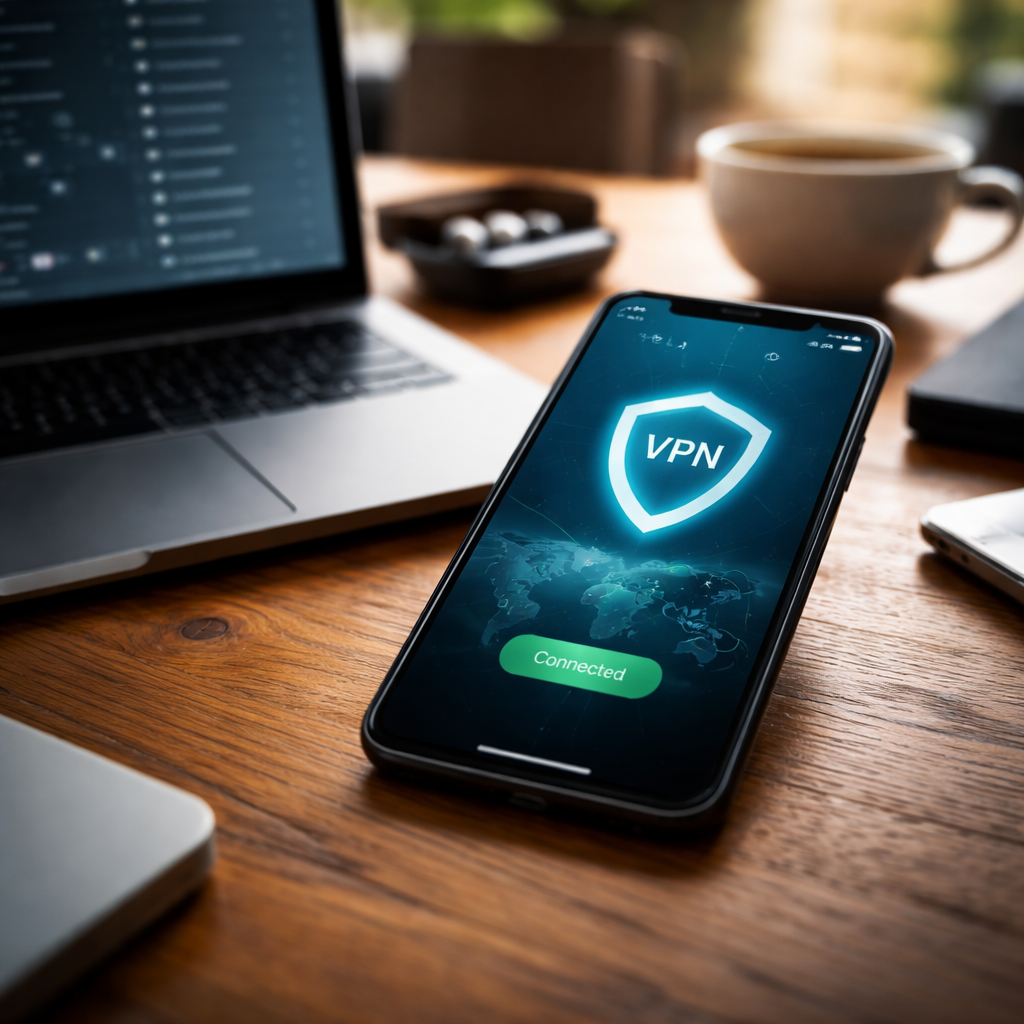
Most people assume that knowing how to set up a VPN requires some technical background — but in reality, the whole process takes about five minutes and works on virtually any device you already own. Whether you want to protect your connection on public Wi-Fi, access content that’s restricted in your region, or simply keep your browsing activity private, a VPN is one of the most practical tools you can add to your digital routine.
What actually happens when you connect to a VPN
Before jumping into the setup steps, it helps to understand what’s going on under the hood — not because you need to become a network engineer, but because it makes the whole thing less mysterious.
When you connect to a VPN, your device creates an encrypted tunnel to a remote server operated by your VPN provider. All your internet traffic passes through that tunnel, which means your internet service provider, the network you’re on, and websites you visit see the IP address of the VPN server — not your real one. The data itself is encrypted, so even if someone intercepts it, it’s unreadable.
This combination of IP masking and traffic encryption is the foundation of what makes a VPN useful for both privacy and security.
Choosing a VPN service before you do anything else
The setup process differs slightly depending on which VPN you use, so this decision comes first. There are dozens of options available, ranging from free services to paid subscriptions with dedicated apps for every platform.
Here’s what to look at when comparing providers:
- No-logs policy — the provider should not store records of your browsing activity
- Encryption protocol — look for WireGuard, OpenVPN, or IKEv2, which are considered reliable and well-audited
- Server locations — more countries mean more flexibility for geo-unblocking
- Device limit — most plans cover 5–10 simultaneous connections
- Kill switch feature — this cuts your internet if the VPN drops, preventing accidental exposure
Free VPNs can work for occasional use, but many have data caps, fewer server locations, and less transparent privacy practices. For everyday use, a paid service like Mullvad, ProtonVPN, or NordVPN offers a better balance of performance and trust.
Setting up a VPN using the provider’s app
The quickest method — and the one most people use — is to install the official app from your VPN provider. This approach works on Windows, macOS, Android, and iOS without any manual configuration.
| Platform | Where to get the app | Average setup time |
|---|---|---|
| Windows | Provider’s website or Microsoft Store | 3–5 minutes |
| macOS | Provider’s website or Mac App Store | 3–5 minutes |
| Android | Google Play Store | 2–3 minutes |
| iOS | Apple App Store | 2–3 minutes |
The steps are roughly the same across all platforms: download the app, create an account or log in, choose a server location, and tap Connect. That’s genuinely it for most users.
One thing worth doing right after installation: run a DNS leak test at a site like dnsleaktest.com to confirm that your real IP address is not visible. It takes 30 seconds and gives you real confirmation that the VPN is working correctly.
Manual VPN configuration on Windows and macOS
If you prefer not to use a third-party app — or if your provider doesn’t offer one — both Windows and macOS have built-in VPN clients that support common protocols like IKEv2 and L2TP/IPSec. This requires a bit more setup but keeps everything within your operating system’s native settings.
On Windows
- Open Settings and go to Network & Internet, then VPN
- Click Add a VPN connection
- Enter the server address, VPN type, and your login credentials provided by your VPN service
- Save and connect from the same menu
On macOS
- Open System Settings and navigate to Network
- Click the plus icon to add a new interface and select VPN
- Choose the protocol, fill in the server address and account details
- Apply and connect
Your VPN provider’s website will have the exact server addresses and recommended protocol settings — always use their documentation for this part rather than guessing.
VPN on a router — one setup, all devices covered
For households where multiple devices need VPN protection — smart TVs, gaming consoles, or devices that don’t support VPN apps natively — configuring a VPN directly on the router is an efficient solution. Every device connected to that router then automatically routes its traffic through the VPN.
Not every router supports this out of the box. You’ll need a router that runs firmware compatible with OpenVPN or WireGuard, such as DD-WRT, Tomato, or certain models from Asus with built-in VPN client support. The configuration is done through the router’s admin panel using credentials and configuration files provided by your VPN service.
The tradeoff is that all traffic gets routed through one server, so if you need different locations for different devices, this approach requires some extra planning with split tunneling or multiple VPN profiles.
Small habits that make your VPN setup more effective
Setting up the VPN is just the start. How you use it day-to-day matters just as much as the initial configuration.
- Keep the app updated — VPN providers regularly patch security vulnerabilities and improve protocol performance
- Use the kill switch whenever it’s available, especially if you’re handling sensitive information
- Choose servers geographically close to you when speed is the priority, and servers in specific countries only when you need to access region-locked content
- Check that WebRTC leaks are blocked — this is a browser-level issue that some VPNs address through browser extensions
- Don’t rely on a VPN alone for security — it complements strong passwords and two-factor authentication but doesn’t replace them
A VPN is a tool, and like any tool, it works best when used with a clear understanding of what it does and what it doesn’t do. It protects your connection and masks your IP — it doesn’t make you immune to phishing, malware, or account breaches.
When the connection is slow or drops unexpectedly
Occasional performance issues are common and usually easy to fix without contacting support.
If your connection feels noticeably slower after connecting to the VPN, try switching to a different server — one that’s geographically closer or less congested. Also experiment with the protocol setting: WireGuard is generally faster than OpenVPN for most users, so if your app allows you to switch, it’s worth testing.
If the VPN keeps disconnecting, check whether your device’s power management settings are putting the VPN process to sleep. On mobile devices, make sure the VPN app has permission to run in the background. On desktop, temporarily disabling the firewall or antivirus can help you identify whether a security tool is interfering with the connection.
Most connection issues come down to three things: server load, protocol choice, and local network restrictions. Changing any one of those three usually resolves the problem within a few minutes.
Your connection, your terms
Once you’ve gone through the setup once, maintaining a working VPN configuration takes almost no ongoing effort. The apps handle updates automatically, the connection is one tap away, and the protection is constant in the background. What started as a technical-sounding task turns out to be one of the more straightforward things you can do to take control of your online privacy — no advanced knowledge required, just a few minutes and the right provider for your needs.