
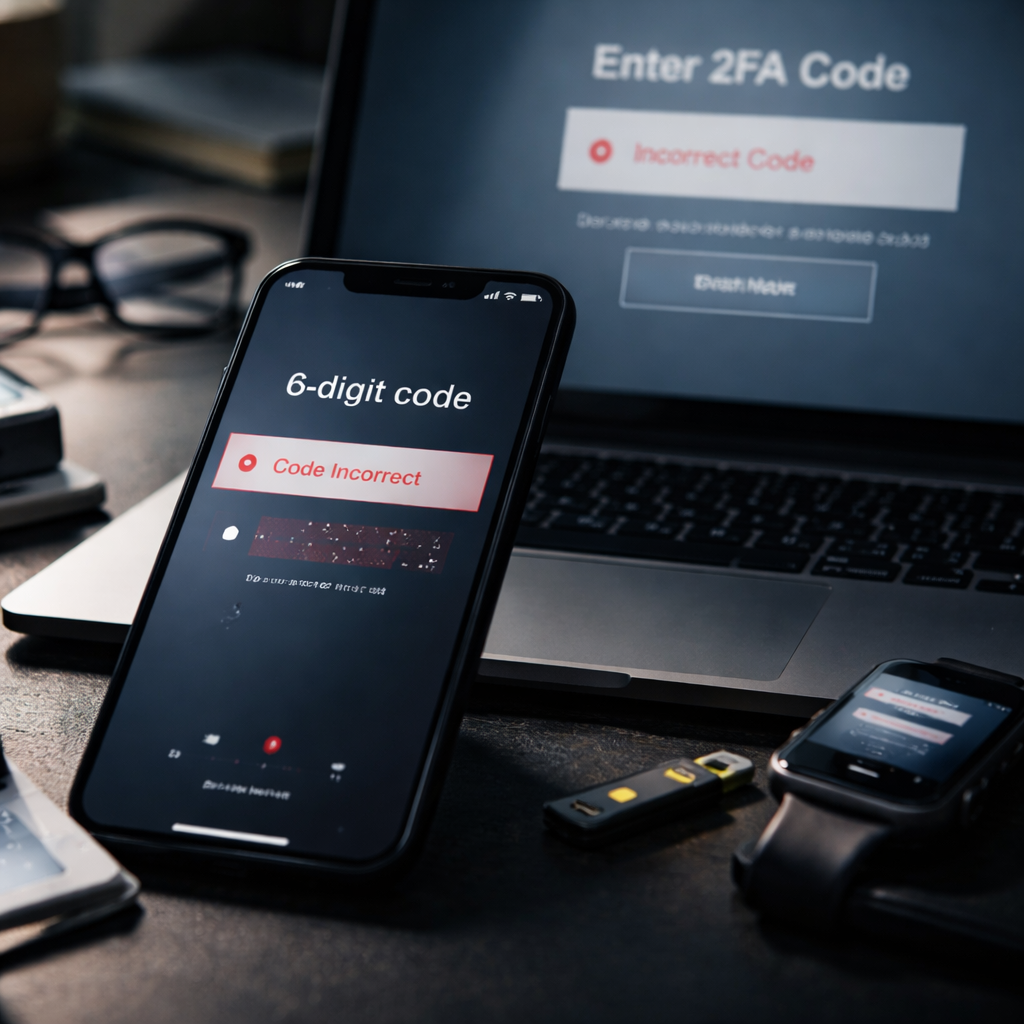
Locked out of your account because two-factor authentication not working is one of the most frustrating security-related experiences you can run into — especially when you need access urgently and the clock is ticking. Before you panic or start resetting everything, it helps to understand what actually goes wrong with 2FA and why seemingly random failures happen more often than people expect.
Why 2FA fails more often than it should
Two-factor authentication is built on a foundation of trust between your device, your account, and a time-sensitive code. When any part of that chain slips, authentication breaks down. The most common culprit is surprisingly simple: time synchronization. Authenticator apps like Google Authenticator or Authy generate codes based on your device’s internal clock. If your phone’s clock is even 30 seconds off from the server’s clock, every single code you generate will be invalid.
This is not a rare edge case — it happens regularly to people who travel across time zones, turn off automatic time sync, or simply haven’t restarted their phone in weeks. The fix is usually immediate once you re-enable automatic time settings.
The most common reasons authentication codes get rejected
There’s a wide range of reasons why a valid-looking code might still get rejected. Some are technical, some are user-side, and a few are surprisingly overlooked even by experienced users.
- Device clock is out of sync with internet time servers
- You’re entering a code that has already expired (each TOTP code is valid for roughly 30 seconds)
- The authenticator app was set up with a backup or incorrect QR code
- SMS-based 2FA codes are delayed due to carrier issues or poor signal
- The account was re-secured after a breach and the original 2FA keys were replaced
- Browser extensions or VPNs interfering with login session verification
- Using a cloned or restored phone where the authenticator app lost its seed keys
Each of these issues requires a slightly different approach, which is why blindly resetting your 2FA without diagnosing the root cause can actually create new problems down the line.
How to actually fix it, step by step
The diagnostic process doesn’t need to be complicated. Working through the most likely causes in order saves time and avoids unnecessary account lockouts.
| Problem | Quick fix |
|---|---|
| Clock sync error | Go to device settings → Date & Time → enable “Set automatically” |
| Expired code | Wait for the next code to generate, then enter it immediately |
| Wrong authenticator entry | Check if you have multiple entries for the same account and try each one |
| SMS code not arriving | Request the code again, check signal strength, try a different network |
| Lost access to authenticator app | Use backup codes provided during 2FA setup, or contact support |
One thing worth noting: if you’re using Google Authenticator specifically, the app has a built-in time correction feature. Go to Settings inside the app, then tap “Time correction for codes” and select “Sync now.” This can resolve clock-related rejections without touching your phone’s system settings.
Always store your backup codes in a secure, offline location the moment you enable two-factor authentication on any account. These codes are your real safety net when everything else fails.
When the problem is on the service side, not yours
Sometimes the issue genuinely isn’t your device or app. Authentication servers can experience outages, misconfigurations, or fail to properly verify TOTP tokens after a system update. If your code looks correct and your clock is synced, check whether other users are reporting login issues on the platform’s status page or community forums. Services like Downdetector aggregate real-time user reports and can confirm whether the authentication failure is widespread.
In cases where a service recently migrated systems or updated its security infrastructure, 2FA tokens that were previously valid may no longer be recognized. This is more common than most users realize, and the only resolution is typically to disable and re-enable 2FA on the affected account once normal access is restored through support channels.
SMS vs. authenticator app: which breaks more often
This is a practical question worth addressing directly. SMS-based verification is more prone to delivery failures — carrier delays, SIM-related issues, international roaming restrictions, and even SIM-swapping attacks can all interrupt the process. Authenticator apps are generally more reliable for code delivery because they work entirely offline and don’t depend on network carriers.
That said, authenticator apps carry their own risk: if you lose your phone or switch devices without transferring the app data, you lose access to all the codes. This is why security professionals consistently recommend setting up at least two recovery methods when enabling two-step verification — whether that’s backup codes, a secondary email, or a hardware security key.
What to do if you’re completely locked out
Getting fully locked out — meaning you can’t access backup codes, your old phone, or the authenticator app — is stressful but not always permanent. Most major platforms have an account recovery process that involves identity verification. This typically includes:
- Confirming recent account activity or login locations
- Verifying your identity through a government-issued ID
- Answering security questions or confirming billing information
- Waiting through a mandatory security delay (some platforms impose 3–7 day holds)
The waiting period feels annoying, but it exists specifically to protect accounts from unauthorized recovery attempts. Patience here is genuinely part of the security model.
If a platform’s support team asks you to verify your identity through unofficial channels or third-party sites, treat it as a red flag — account recovery scams are built around exactly these moments of vulnerability.
Building a smarter approach to account security going forward
Running into a broken 2FA situation is actually a useful prompt to rethink how you manage account security overall. A few habits that meaningfully reduce the chance of getting locked out in the future:
- Export or print backup codes immediately after setting up 2FA on any account
- Use a dedicated password manager that supports secure note storage for backup codes
- Consider hardware keys (like YubiKey) for high-value accounts — they’re immune to phishing and don’t depend on time-sync
- When switching phones, transfer your authenticator app before wiping the old device
- Periodically test your backup codes to confirm they’re still valid
None of these require technical expertise. They’re straightforward habits that take a few minutes to set up but can prevent hours of lockout frustration later. Two-factor authentication remains one of the most effective tools available for protecting online accounts — the goal is making sure it works for you, not against you when something goes wrong.