
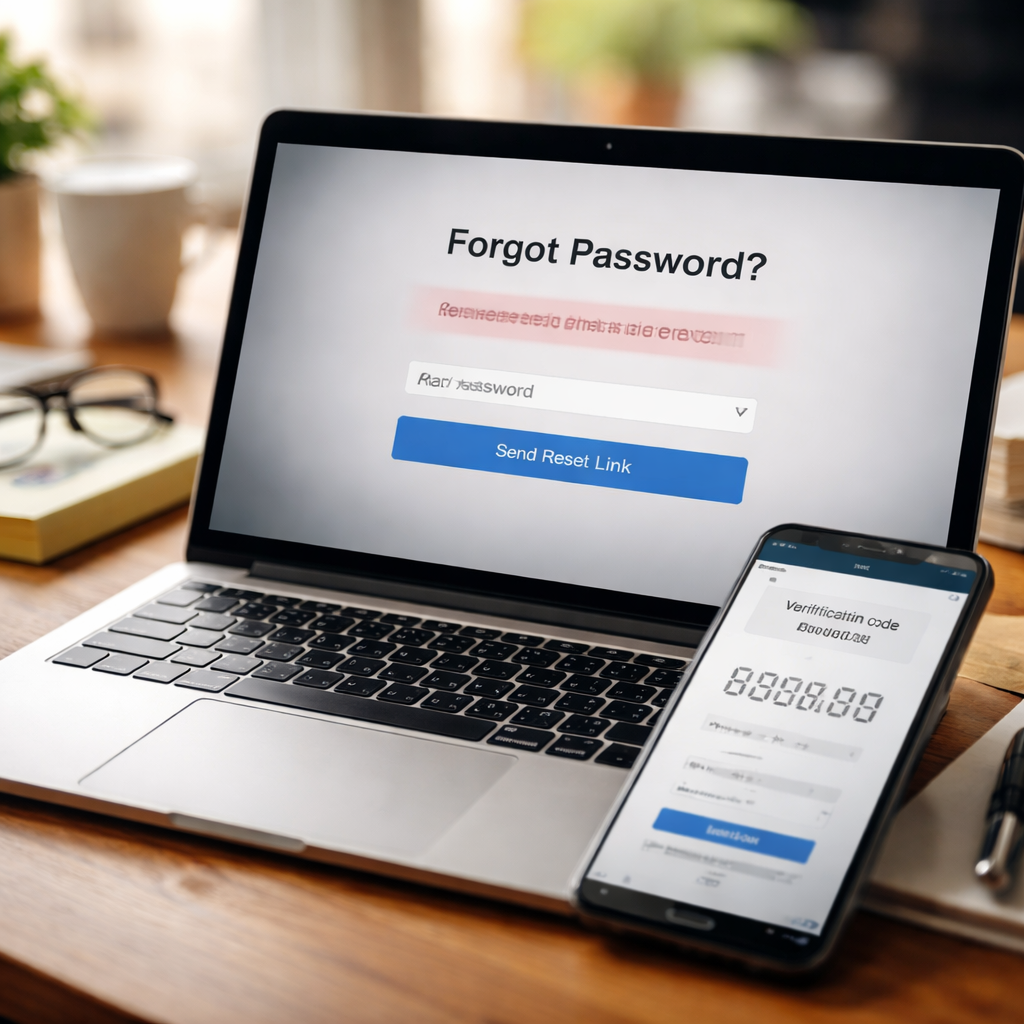
Most people have been through it at least once — you open a login page, type what feels like the right password, and get a red error message staring back at you. Knowing how to recover a forgotten password quickly and without losing access to your account is one of those small but genuinely useful skills that saves time and prevents a lot of frustration. The good news is that the process is far more straightforward than most people assume, regardless of which platform or service you’re dealing with.
Why passwords slip out of our memory so easily
The average person manages dozens of online accounts, and security recommendations push us to use a unique, complex password for each one. That’s sensible advice, but it naturally leads to forgetting credentials — especially for accounts you haven’t visited in weeks or months. It’s not a sign of carelessness. It’s simply how memory works when you’re juggling too many random strings of characters.
Understanding that helps shift the focus from “why did I forget this?” to “what’s the fastest way to get back in?” — which is a much more productive question.
The standard reset flow: what actually happens behind the scenes
When you click “Forgot password?” on most platforms, the service doesn’t retrieve your old password — it can’t, because reputable services store passwords as encrypted hashes, not readable text. Instead, it sends you a time-limited reset link, usually valid for 15 to 60 minutes, to your registered email address or phone number.
Here’s what the typical process looks like step by step:
- Click the “Forgot password” or “Can’t sign in?” link on the login page.
- Enter the email address or phone number linked to your account.
- Check your inbox or messages for a reset link or verification code.
- Follow the link and create a new, strong password.
- Log in with your new credentials and, if possible, save them in a password manager.
If the reset email doesn’t arrive within a few minutes, check your spam or junk folder first — automated messages from security systems are frequently filtered out by email providers.
When you no longer have access to the recovery email or phone
This is where things get genuinely complicated, and it’s a situation more people find themselves in than you’d expect — an old email address that’s been deactivated, a phone number that belongs to someone else now, or a secondary account you simply don’t remember.
Most major platforms have backup recovery options for exactly this scenario. Google, for instance, asks identity verification questions based on your account activity — when you created the account, devices you’ve previously logged in from, or recent searches. Apple’s account recovery uses trusted devices, recovery keys, or a designated recovery contact you may have set up.
If you’re locked out without any recovery options, your best path is to contact the platform’s official support team directly. Avoid any third-party “account recovery” services — they are almost always scams designed to steal your credentials, not restore them.
Platform-specific differences worth knowing
Password recovery isn’t one-size-fits-all. Different services handle it differently, and knowing those differences saves time.
| Platform | Primary recovery method | Backup option |
|---|---|---|
| Google / Gmail | Recovery email or phone | Account activity verification |
| Apple ID | Trusted device or phone number | Recovery key or recovery contact |
| Email or SMS code | Trusted contacts or identity document | |
| Microsoft | Email, phone, or authenticator app | Security questions or support request |
| Email or SMS | Video selfie identity verification |
Instagram’s video selfie verification, introduced to combat account hijacking, is a good example of how identity verification methods have evolved. The platform uses it to confirm you’re a real person and the legitimate account owner before granting access.
How to avoid this situation going forward
Prevention is easier than recovery, and setting up a few basic habits now means you’re far less likely to be locked out in the future.
A password manager is the single most effective tool here. Applications like Bitwarden, 1Password, or the built-in options in modern browsers can generate and store complex passwords so you never need to memorize them. They also autofill credentials on login pages, which removes the friction that leads people to reuse simple passwords in the first place.
Quick security checklist
- Use a password manager to store and generate credentials.
- Enable two-factor authentication (2FA) on all important accounts.
- Keep your recovery email and phone number up to date.
- Store backup codes for 2FA apps in a safe, offline location.
- Set up account recovery contacts where the option is available.
Two-factor authentication deserves special mention because it doesn’t just protect against unauthorized access — it also gives you an additional identity verification channel during the recovery process itself. An authenticator app like Google Authenticator or Authy generates time-based codes that work even without a cellular signal.
What to do if your account was accessed by someone else
Sometimes you discover that a forgotten password is the least of your worries — the account has already been compromised. If you notice unfamiliar activity, messages you didn’t send, or settings that have changed, act quickly.
- Reset your password immediately using the platform’s recovery process.
- Check connected apps and revoke access to anything unfamiliar.
- Review active sessions and log out of all devices remotely.
- Enable two-factor authentication if it wasn’t already active.
- Notify the platform’s support team so they can flag suspicious activity on their end.
If the compromised account is linked to financial services, email, or a workplace system, treat it as a priority rather than a minor inconvenience. A breached email account can be used as a gateway to reset passwords on every other service connected to it.
Getting back in is just the beginning
Recovering a lost password feels like a problem solved the moment you’re back inside your account — but it’s worth using that moment as a prompt to strengthen your overall account security setup. Update your recovery information, enable 2FA if you haven’t already, and take five minutes to save your new credentials somewhere reliable. The lockout was inconvenient, but it’s also a useful reminder that a small amount of preparation now makes every future login easier and safer.